
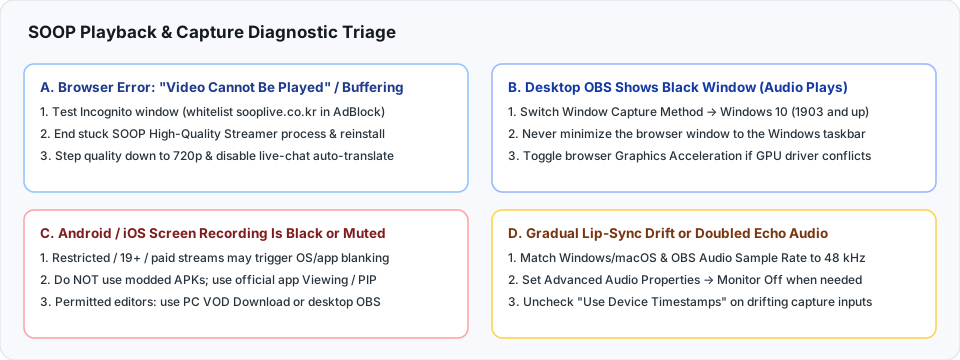
1. Fixing 영상을 재생할 수 없습니다
& Infinite Buffering on PC Web
When sooplive.co.kr or sooplive.com refuses to load a live room or VOD replay—or displays 영상을 재생할 수 없습니다
(Video cannot be played)—work through these four checks in order:
- Test in an Incognito / InPrivate Window First: Aggressive ad-blockers, script-blocking extensions, and strict browser Tracking Prevention rules frequently block SOOP's video segment delivery or pre-roll handshake. If playback starts immediately in Incognito, whitelist
sooplive.co.krandsooplive.comin your content blocker. - Restart or Reinstall Windows SOOP High-Quality Streamer (고화질 스트리머): On Windows PCs where SOOP's high-definition delivery helper was installed, a hung background process can stall high-bitrate streams. Press Ctrl + Shift + Esc to open Task Manager, end any stuck
SOOP/ 고화질 스트리머 background task, and reload the player (or uninstall/reinstall the helper cleanly from Windows Installed Apps). - Step Down Quality & Disable Chat Auto-Translate: Switch the player gear icon down to
720pto test ISP routing bottlenecks. In fast-moving chat rooms, turn Chrome/Edge Automatic Page Translation Off—live DOM translation of hundreds of Korean chat lines per second starves the video decoder thread and causes freezes. - Verify Access & Retention Status: Confirm the broadcast has not transitioned to a subscriber-only (구독 전용), password-locked, or 19+ Korean real-name (본인인증) state—and for older VOD links, check whether the replay expired under SOOP's June 1, 2026 VOD retention policy.
2. Fixing OBS & FreecShot Plus Black Capture Windows
- FreecShot Plus Game Capture Requires Administrator Launch: As documented in SOOP's official FreecShot Plus FAQ, games running with elevated privileges appear blank if FreecShot Plus was launched as a standard user. Right-click the FreecShot Plus (프릭샷 플러스) icon and select Run as administrator (관리자 권한으로 실행).
- Select Windows Graphics Capture (WGC) in OBS: Double-click your OBS Window Capture (윈도우 캡처) source and change Capture Method from
Automatic/BitBlttoWindows 10 (1903 and up)(labeled 신식 in Korean OBS builds). - Never Minimize the Source Browser Window: Minimizing Chrome or Edge to the taskbar halts GPU frame composition entirely. Keep the standalone SOOP browser window un-minimized, and add
sooplive.co.krto Chrome/Edge's Always keep these sites active list so background power-saving never throttles rendering to 1 FPS. - Toggle Browser Hardware Acceleration Only as a Fallback: If an older dual-GPU laptop still renders a black canvas under WGC, toggle Use graphics acceleration when available off inside browser system settings and relaunch.
- macOS ScreenCaptureKit Permission Reset: On macOS 13+, open System Settings → Privacy & Security → Screen & System Audio Recording, toggle OBS Studio off and back on, and restart OBS if a macOS update invalidated capture permissions.
3. Mobile Black Screens & Protected Stream Restrictions
Do Not Circumvent OS or App Media Restrictions
Mobile operating systems and streaming apps may restrict screen or audio capture on protected, paid/subscriber-gated (구독 전용), or age-verified (19세 이상) content, producing black frames or muted audio. This handbook does not provide bypass methods or modified apps. If you are an authorized channel editor working with creator permission, check whether the streamer can grant PC channel VOD / downloader permission instead.
4. Fixing Progressive Audio Sync Drift, Double Echo & Missing BGM
| Audio Symptom | Root Cause | Verified Fix |
|---|---|---|
| Audio drifts 0.5–2 seconds out of sync over 2+ hours | Sample-rate mismatch (44.1 kHz USB mic or virtual cable mixed into a 48 kHz studio project) or device timestamp drift. |
Lock Windows/macOS sound devices and OBS / FreecShot Plus audio settings to 48 kHz across every input; uncheck Use Device Timestamps on drifting sources if needed. |
| Metallic slapback / doubled voice or alert echo | Both global Desktop Audio and per-app Application Audio Capture (or Monitor and Output) are feeding the same track. | Set global Desktop Audio to Disabled when using per-app capture, and check Advanced Audio Properties (고급 오디오 속성) → Monitor Off (모니터링 끔). |
| Muted BGM or Star Balloon chimes still audible in NLE | Track 1 (full live broadcast mix) was left unmuted on the Premiere/Resolve timeline alongside isolated Tracks 2–4. | Mute or delete Track 1 on your editing timeline so only isolated Mic (Track 2), Game/BGM (Track 3), and Alert (Track 4) stems play. |
5. Unplayable .mp4 Files After Crashes & Encoder Overload
- Avoid Classic Unfragmented MP4 for Long Sessions: If power or software fails before a traditional
.mp4writes its closing index, the entire multi-hour file is lost. In OBS Studio, useMatroska Video (.mkv)(with post-stream Remux to MP4) or resilientHybrid MP4 / Hybrid MOV(useFragmented MP4/MOVonly where your NLE supports it directly). - Fix Encoding Overloaded Warnings: Run OBS or FreecShot Plus as Administrator on Windows so GPU scheduling prioritizes compositing, or set OBS Recording Encoder to
(Use stream encoder)if a single GPU struggles to run separate stream and CQP recording sessions simultaneously.