
After SOOP's June 1, 2026 VOD retention overhaul—which ended default permanent storage for Standard Streamers (now 90 days, or 1 year at ≥50 pure VOD views) and placed a 2-year baseline on Best Streamers—relying solely on server-side 다시보기 archives puts older broadcasts at risk of permanent deletion. Recording locally on your computer guarantees an immediate, high-quality local editing master.
1. Streamer Simultaneous Local Recording: FreecShot Plus vs. OBS Studio
Broadcasters on SOOP (sooplive.co.kr / sooplive.com) have two primary desktop studio paths: SOOP's current Windows application FreecShot Plus (프릭샷 플러스)—which replaced legacy FreecShot after SOOP ended feature updates to the older program and added one-click settings migration—or external RTMP encoders such as OBS Studio and PRISM Live Studio connected through External Device Broadcast Settings (외부장치 방송 설정) at dashboard.sooplive.com.
| Feature | FreecShot Plus (프릭샷 플러스) | OBS Studio (외부장치 방송 설정) |
|---|---|---|
| Operating System | Windows only (legacy FreecShot updates ended; migrate via FreecShot+) |
Windows & macOS (including Apple Silicon) |
| Recording Setup & Formats | Open Settings (⚙) → Recording and click bottom-right REC (verify format/path options exposed by your installed build) |
Matroska Video (.mkv) (with Auto-Remux), direct Hybrid MP4 / Hybrid MOV, or Fragmented MP4/MOV (if NLE-supported) |
| Multi-Track Audio Stems | Supports Tracks 1–6 under Settings → Recording → Advanced + Audio Mixer ⋮ → Advanced Audio Properties (legacy FreecShot had version limits) |
Full 6-track routing via Advanced Audio Properties (Track 1 Live Mix + isolated Mic, Game/BGM, and alerts) |
| Multi-Platform Simulcasting | Integrated SOOP chat, mission, Electronic Secretary (전자비서), and AI tools | Supports obs-multi-rtmp simultaneous streaming and custom VST/filter pipelines |
Configuring OBS Studio for SOOP (외부장치 방송 설정)
- Sign into
dashboard.sooplive.comand open My Broadcast Management → External Device Broadcast Settings (내 방송 관리 → 외부장치 방송 설정) to copy your Server URL (서버 URL) and Stream Key / Stream Name (스트림 이름 / 스트림 키). (Confirm exact live field labels inside your authenticated dashboard.) - In OBS Settings → Stream, choose
Custom...and paste your Server URL and Stream Key. - In Settings → Output (Advanced) → Streaming, configure outbound SOOP stream parameters:
- 1080p60 (Standard Documented Spec): Encoder H.264 (
NVENC H.264,QSV H.264,AMD H.264,x264, or macOSApple VT H264), Rate ControlCBR, Bitrate2,000–8,000 kbps(8,000 kbpsstandard 1080p ceiling), Keyframe Interval2s. - Higher Resolutions (e.g., 1440p): Availability and allowable bitrate above 1080p are conditional and controlled by SOOP per account/channel configuration—check your authenticated broadcaster settings rather than assuming a fixed cap, because exceeding your account's permitted resolution can drop the stream connection.
- Audio: Stereo AAC
128–160 kbpsfor broad compatibility (up to320 kbpsmax), unified at48 kHz.
- 1080p60 (Standard Documented Spec): Encoder H.264 (
- On the Recording tab, choose
(Use stream encoder)(~3.54 GiB/hrat8,000 + 320 kbpssingle track) for minimal extra GPU load on single-PC setups, or select a dedicated local hardware encoder for high-motion masters: NVIDIA NVENCCQP 18–21, Intel QSVICQ 18–22, AMD AMFCQP 18–21, or macOS local-onlyApple VT H264 / Apple VT HEVC(Quality 65–75— note that HEVC is for local recording only, while your outbound SOOP RTMP stream remains H.264).
2. Multi-Track Audio Separation (Star Balloon Alerts) & NLE Track-1 Mute Rule
Both FreecShot Plus (Settings → Recording → Advanced → Audio Tracks 1–6) and OBS Studio allow you to isolate microphone, BGM, and Star Balloon (별풍선) alerts for clean YouTube edits while sending a complete mix to live viewers:
- For browser-based donation overlays in OBS, check Control audio via OBS on the Browser Source properties.
- Open Advanced Audio Properties (고급 오디오 속성; in FreecShot Plus, click Audio Mixer
⋮) and route your sources:- Track 1 (Full Live Stream Mix — Required): Microphone + Game/BGM + Star Balloon Alerts all checked (any source unchecked on Track 1 will not be heard on the live broadcast)
- Track 2 (Isolated Voice): Microphone only
- Track 3 (Isolated Game / BGM): Game / Desktop BGM only
- Track 4 (Isolated Alerts): Donation / Electronic Secretary alert source only
- Keep live streaming on Track
1, and check Recording Audio Tracks1, 2, 3, 4(in OBS Settings → Output → Audio, each track defaults to160 kbps—totaling ~640 kbpsacross 4 tracks, or up to a1,280 kbpslocal ceiling if all four are raised to320 kbps). Crucial editing step: In Premiere Pro or DaVinci Resolve, mute or exclude Track 1 on your timeline when mixing Tracks 2–4—otherwise the combined live mix on Track 1 will bleed BGM and alerts right back into your edit.
3. Consent-Authorized Browser Capture (Windows & macOS)
If you are an authorized channel editor working from a published replay, first check whether the streamer can grant channel VOD / downloader permission so you can download the platform-stored VOD on PC without screen capture. When capturing a live public broadcast with explicit written consent:
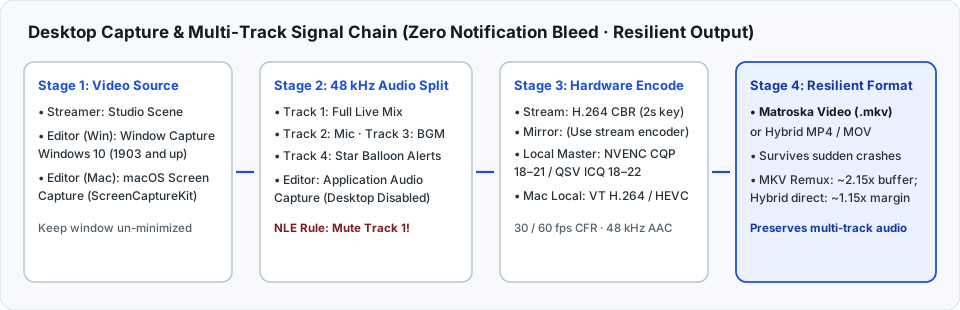
- Windows 10 / 11 (OBS Studio): Open
sooplive.co.krin a standalone, un-minimized Chrome or Edge window, add OBS Window Capture with Capture Method set toWindows 10 (1903 and up), set global Desktop Audio to Disabled, and add Application Audio Capture (BETA) targetingchrome.exeormsedge.exeat48 kHz. - macOS 13 Ventura & Newer: Grant OBS permission under System Settings → Privacy & Security → Screen & System Audio Recording, then add a macOS Screen Capture source (Apple
ScreenCaptureKitcaptures browser audio cleanly without third-party loopback drivers).
4. Resilient Containers (MKV vs. Hybrid MP4/MOV), Audio Extraction & Silent Clips
- Choosing an OBS Container: Never record multi-hour sessions to classic unfragmented
.mp4. Modern OBS Studio offers three crash-resilient options:Matroska Video (.mkv): Conservative crash safety; pair with Settings → Advanced → Recording → Automatically remux to mp4 (or File → Remux Recordings), planning roughly2.15×session free space while.mkvand.mp4coexist (Storage Calculator).Hybrid MP4(Windows) /Hybrid MOV(macOS): OBS's modern resilient formats that write crash-safe fragmented data live and automatically finalize a standard editor-compatible header on clean stop—needing only a direct-write margin (~1.15×) with no separate remux pass.Fragmented MP4 / MOV: Crash-resistant, but verify your NLE's direct compatibility beforehand because some editors still require remuxing fragmented files.
- Audio-Only Extraction (Inspect with
ffprobeFirst): OBS Remux Recordings never strips video or exports audio-only files. First inspect your file's stream layout withffprobe input.mkv, then map the target zero-based audio stream—for example,ffmpeg -i input.mkv -map 0:a:1 -vn -c:a copy voice.m4afor a second recorded AAC track (or-map 0:a:0if only one audio track was recorded). Stream-copying (-c:a copy) into.m4arequires AAC (or ALAC) source audio; if recorded as Opus, FLAC, or PCM, copy tovoice.mka, transcode to AAC (-c:a aac -b:a 192k voice.m4a), or export.wavin an editor. - Silent Video-Only Clips: Because OBS requires at least one audio track checked on the Recording tab, checking an unassigned empty track (such as Track 6 with all sources unchecked in Advanced Audio Properties) still writes a silent audio stream into the container until you strip it via
ffmpeg -i input.mkv -c:v copy -an silent.mp4or delete the empty audio track in your NLE.
5. Official Sources & Technical References
- SOOP Studio Official Notice — Legacy FreecShot Update End & FreecShot Plus Migration
- SOOP FreecShot Plus Official User Guide PDF (Settings → Recording, 1080p 2,000–8,000 kbps, Audio Tracks 1–6)
- SOOP Studio Support — FreecShot Plus Multi-Track Recording Audio Separation
- OBS Studio Knowledge Base — Hybrid MP4 & Hybrid MOV Guide · Audio/Video Formats Guide